 SlideMarks
Support
Questions, bugs and requests: open an issue on GitHub. Please mention your app (Word or PowerPoint), platform (Mac, Windows or web) and Office version.
Symbols show as empty boxes
The SlideMarks font isn't available. Install it (see Install), then quit every Office app and reopen it. If you received the file from someone else, ask them to turn on font embedding before sending.
Pasting from the web picker
The picker copies the symbol with the SlideMarks font, but whether Office keeps the font depends on how you paste:
- PowerPoint: after pasting, click the Paste Options button and choose Keep Source Formatting.
PowerPoint's default ("Use Destination Theme") switches the font to the theme font, and the symbol shows as a box.
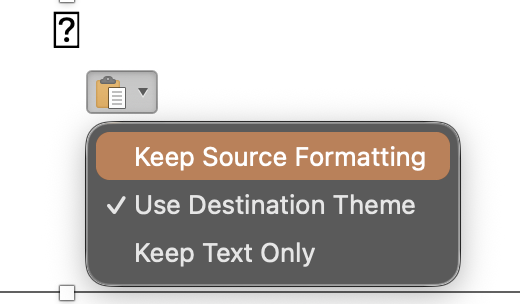
- Word: if the symbol shows as a box, use Paste Options › Keep Source Formatting too.
- PowerPoint SmartArt: pasting into SmartArt doesn't offer Keep Source Formatting, and add-ins can't format SmartArt text. Select the symbol and choose SlideMarks in the font box. Inserting with the add-in works the same way: the symbol goes in, then set its font.
- Alternative: set the text or table cell to the SlideMarks font first, then use Edit › Paste Special › Unformatted Text.
The Office add-in avoids all of this: its Insert button sets the font for you.
Installing and uninstalling
The one-step installers put the font and the add-in in your own user folders, so they don't need administrator rights. Read them first if you like, on GitHub: install.sh (Mac), install.ps1 (Windows).
After installing: open SlideMarks
- Quit Word and PowerPoint and reopen them (on a Mac, ⌘Q; closing the window isn't enough). Office only loads new fonts and add-ins when it starts.
- On the Home tab, click Add-ins, then SlideMarks.
Word lists it under Developer Add-ins; PowerPoint shows it at the top.
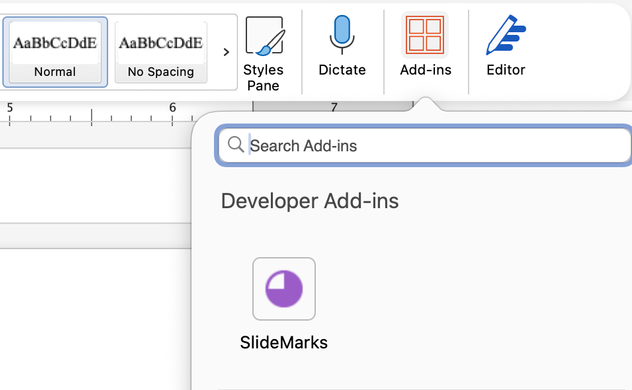
- The SlideMarks pane opens on the right. Search for a symbol and click Insert.
If symbols show as empty boxes, quit Office once more: it sometimes needs a second restart to load a new font.
Mac: “would like to access data from other apps”
While installing, macOS asks whether Installer (or Terminal, if you used the command) can access data from other apps. Choose Allow. Word and PowerPoint only load add-ins from a folder inside their own app data, so the installer has to write there. It adds one file and changes nothing else.
If you chose Don't Allow, the font is installed but the add-in isn't. Run the installer again and choose Allow. If macOS doesn't ask again, add the add-in by hand with the manual steps (Finder isn't blocked).
Uninstall
- Mac, in Terminal:
curl -fsSL https://pjaol.github.io/SlideMarks/install.sh | sh -s uninstall - Windows, in PowerShell with Word and PowerPoint closed:
& ([scriptblock]::Create((irm https://pjaol.github.io/SlideMarks/install.ps1))) -Uninstall
Office on the web
- Download the add-in manifest.
- Open a document in Word or PowerPoint at office.com.
- Home → Add-ins → More Settings → Upload My Add-in, choose the manifest file, then Upload.
The web version can't embed fonts, so use the desktop app before sharing files.
Organizations
Administrators can deploy the add-in manifest to users or groups from the Microsoft 365 admin center (Settings → Integrated apps → Upload custom apps), so it appears in Word and PowerPoint without any other steps. Deploy the font with your usual software tools.
Manual install
If you can't run the installers, install the font by double-clicking it (Windows: right-click → Install), then add the add-in manifest:
- Mac: in Finder choose Go → Go to Folder… (⇧⌘G), open
~/Library/Containers/com.microsoft.Powerpoint/Data/Documents/(for Word:com.microsoft.Word), create a folder namedwefthere if it's missing, and copy the manifest into it. - Windows: put the manifest in a folder, share it (Properties → Sharing → Share…),
then in Word or PowerPoint add the network path, such as
\\YOUR-PC\SlideMarks, under File → Options → Trust Center → Trust Center Settings… → Trusted Add-in Catalogs with Show in Menu ticked. After a restart, it's under Home → Add-ins → Advanced → SHARED FOLDER.
Then quit and reopen Word and PowerPoint.
Embedding the font when sharing
Open the SlideMarks pane and follow Show me how. It shows the exact steps for your app and checks the result.
Name and trademark
Official releases come only from this site and github.com/pjaol/SlideMarks. See the name and logo policy.